
In some situations, the correct Community or Topic has already been found, and is open in the web browser. It would seem easy to simply provide the same link to SWOOP in order to examine statistics for this Community or Topic. As a special shortcut, SWOOP supports simple copy and paste of the URL out of Viva Engage and into the search box.
This article steps through the process.
Paste URL into Topic Search.
Start at the page of a Topic in Viva Engage (Yammer). You can get to this page by clicking on the topic tag in Yammer. Take a copy of the URL at the top of the page.
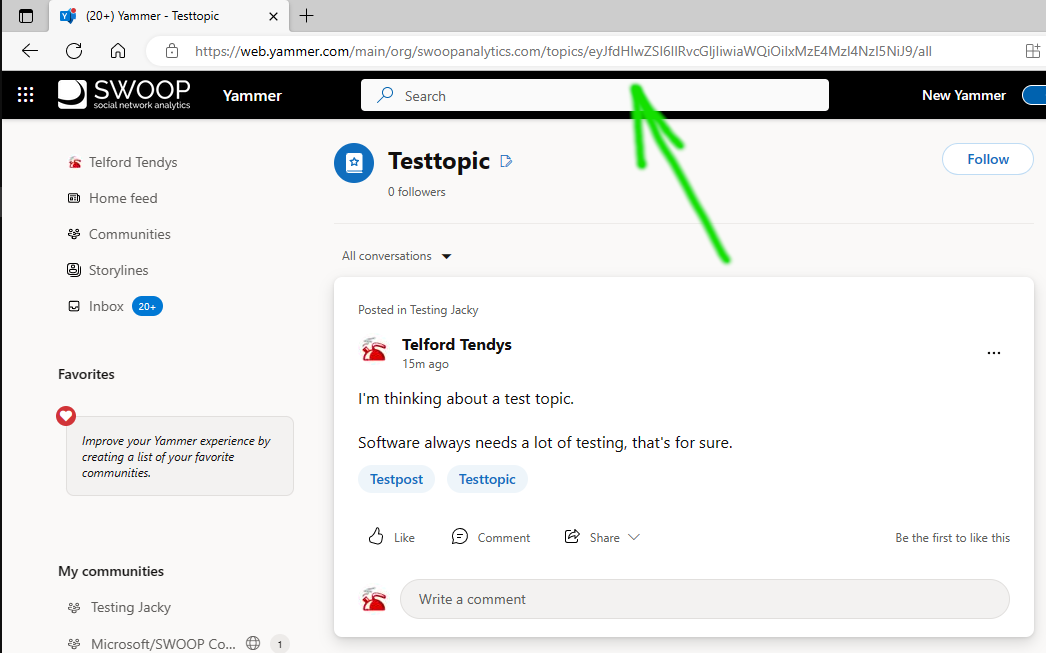
Now go to the SWOOP Topics dashboard, and click into the search box. For example in the screen shot below the green arrow shows the URL being pasted in. It will search and find the topic that is described in the URL. It might also find some other topics with the same name as a prefix.
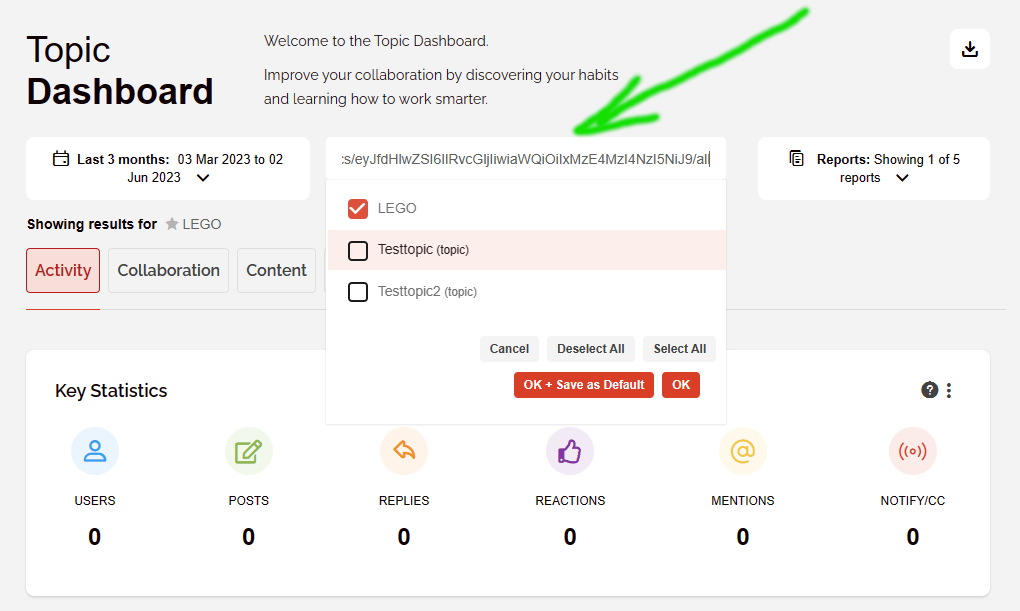
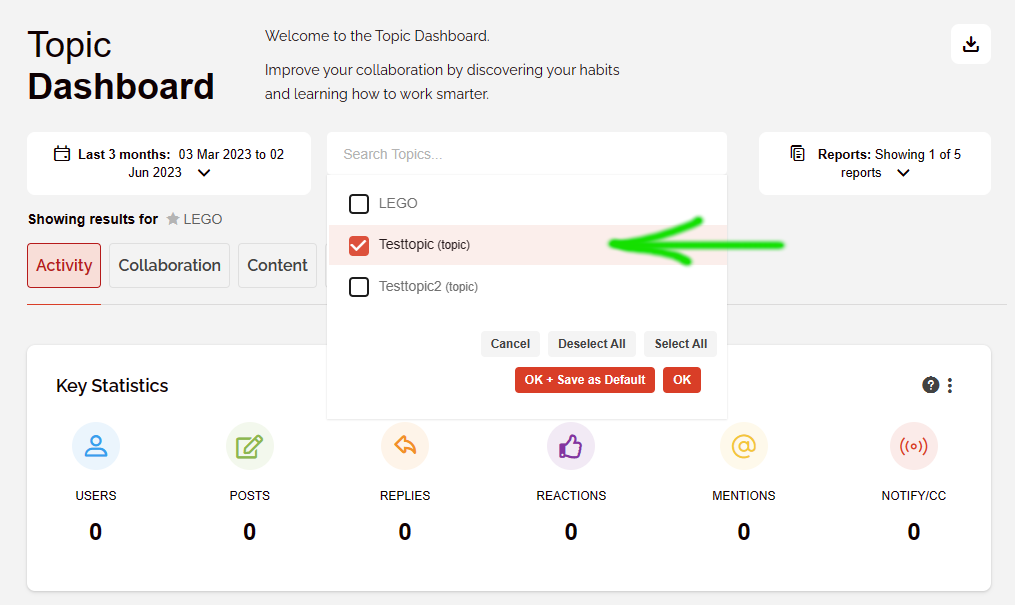
Ticking the topic you want, and unticking other topics allows SWOOP access to the same topic.
Paste URL into Community Search.
Start at the page of a Community in Viva Engage (Yammer). The URL can be copied in the same manner as the topic above. This example shows a Community page.
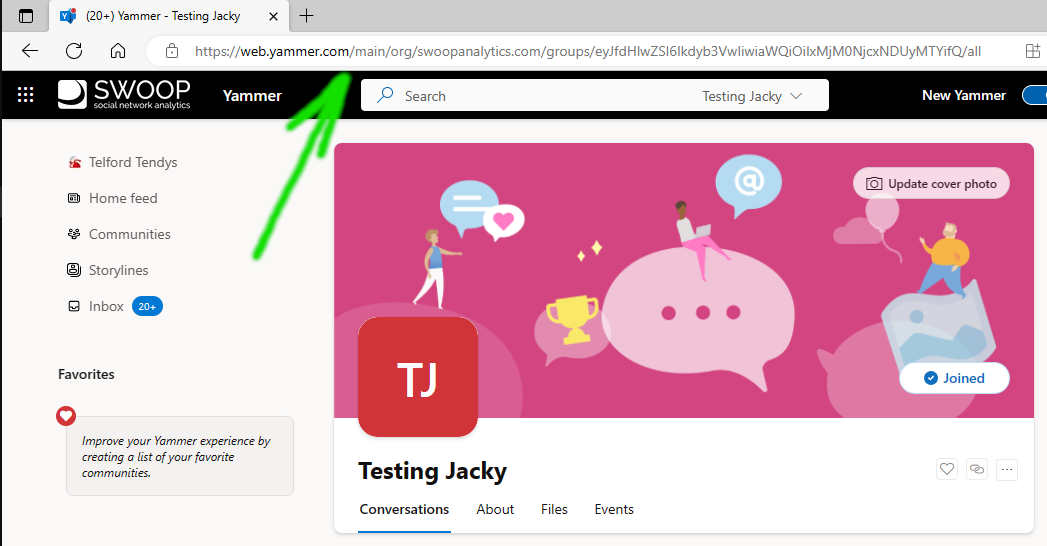
The green arrow above points to the browser URL, which can be copied as usual. The screen shot below contains the search
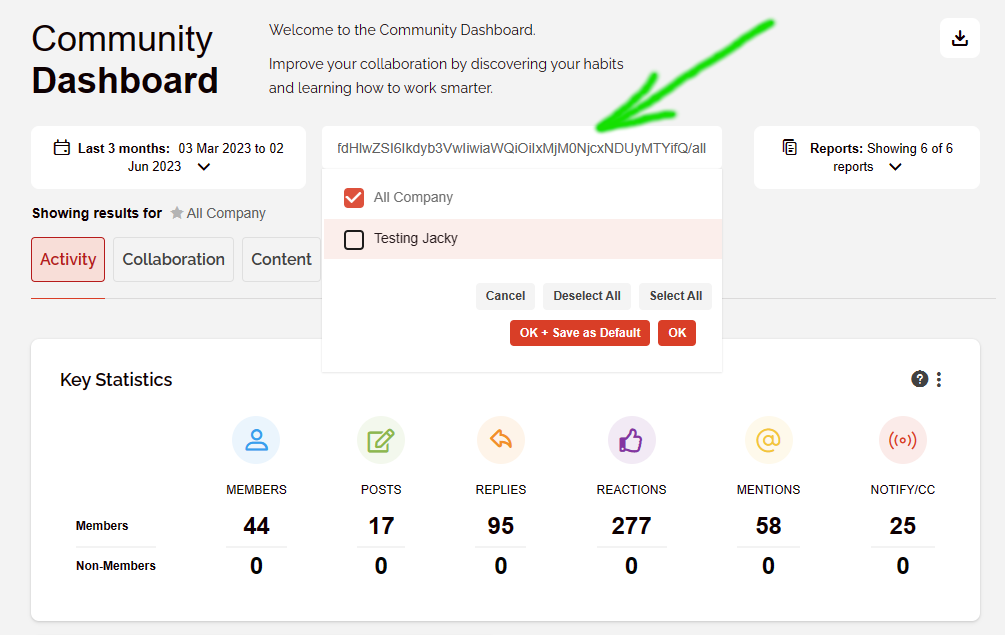
Selecting the community in the drop-list and unselecting the previous item gives access to SWOOP statistics for the same community.
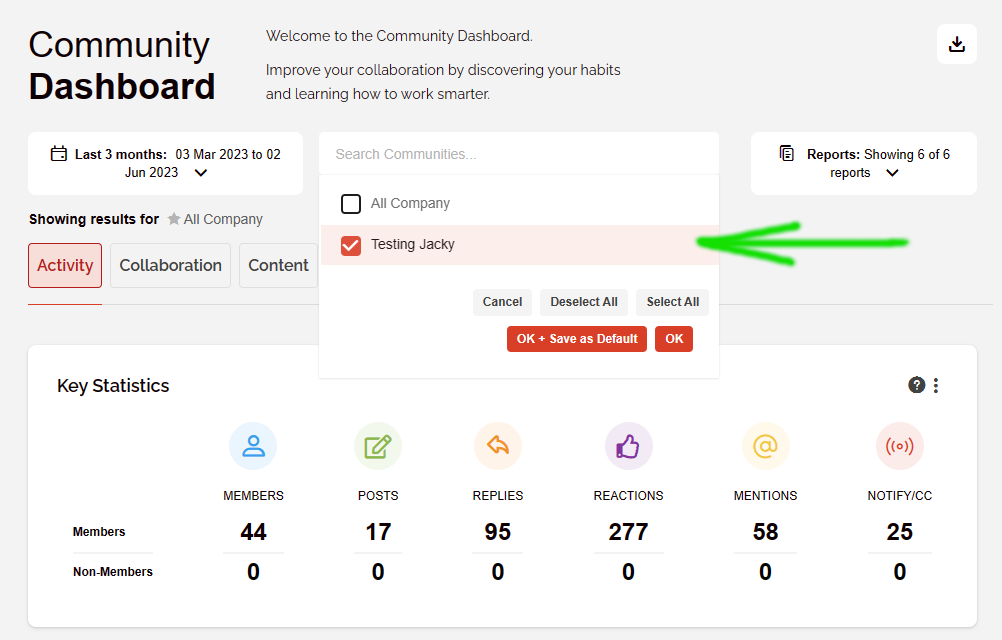
This method might save some time and makes it easier to get access to SWOOP statistics.